S
ShipReady@shipready · Launch day
We shipped! The guide to Open Graph images that don't look broken, with the exact fix for grey-box link previews 👇
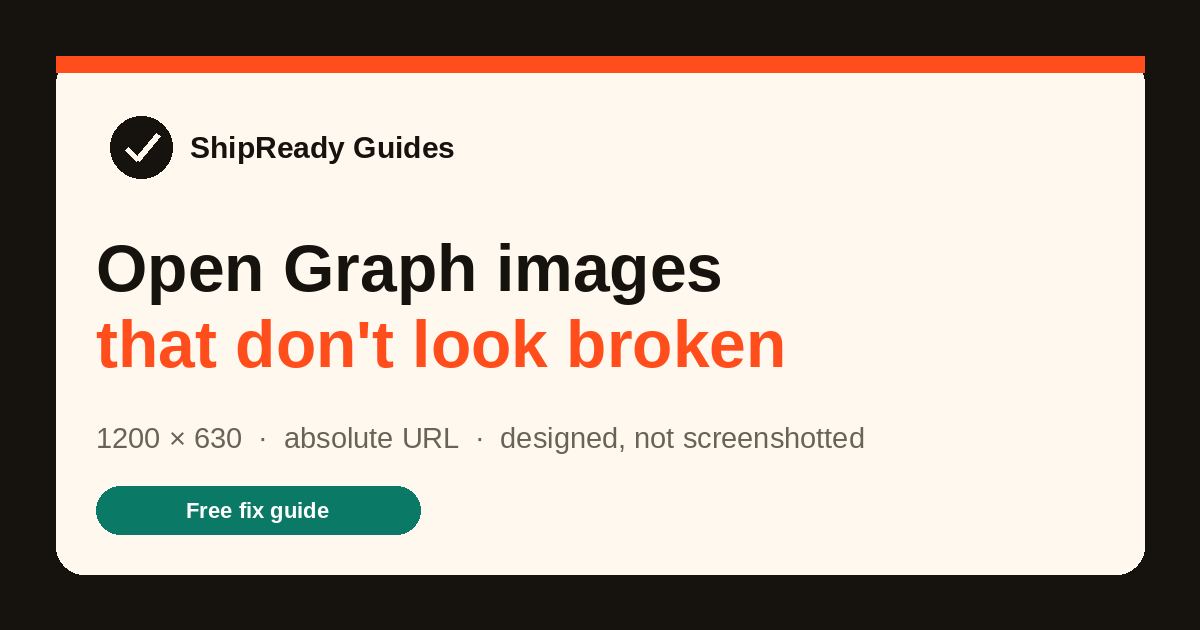
You shared your launch link and the preview was a grey box, a blurry logo, or a screenshot with the headline cut in half. That's not a design problem. It comes down to four specific, fixable causes. This guide covers all of them: the right size, the right tags, dynamic generation in Next.js, and the scraper cache that makes your fix look like it didn't work.
Export one image at 1200 × 630px. Put it at a public, absolute URL (https://yoursite.com/og.jpg, never /og.jpg). Add the full tag set below, including twitter:card. Then force a re-scrape, because X and Facebook cache the old broken preview for days. Skip any one of those four and the share still looks broken.
When someone pastes your URL into X, LinkedIn, Slack, Discord, iMessage or Facebook, that platform sends a bot (a “scraper”) to your page, reads the Open Graph tags in your <head>, and builds the preview card from them. It never renders your page like a browser does. Every broken preview traces back to one of these:
og:image at all. The scraper has nothing to show, so you get a plain text link or a grey placeholder box. This is the default state of most vibe-coded apps, because AI builders rarely add OG tags unless asked.og:image" content="/og.jpg" or a localhost URL looks fine in your browser's view-source and fails completely for a scraper on another machine. Scrapers require absolute URLs, publicly reachable, with no login wall or redirect chain in the way.The launch post nobody clicks. Most common, easiest fix.
A square logo stretched into a wide frame turns to mush.
Full-page capture center-cropped: headline cut, UI text microscopic.
Every major platform converged on the same canvas. Design for it once and you're done:
Design it, don't screenshot it. A good OG image is a billboard, not a UI capture: your product name, one line of benefit, maybe one clean visual. Text should be huge. Assume it renders about 500px wide in a feed, so anything under ~40px in the 1200px-wide file is decoration, not information. This page's own OG image (the one that renders when you share this guide) follows exactly that recipe:
og:image : 1200 × 630, one headline, one supporting line, nothing near the edges. Steal the layout.Notice what the square crop does: everything near the left and right edges is sliced away, and only the center carries the message. That's why the safe zone exists. If your product name or headline sat in a corner, it would be gone.
Same tags, four slightly different renderings. Switch platforms to see how your share will look. This is the image above, shown the way each feed shows it.
We shipped! The guide to Open Graph images that don't look broken, with the exact fix for grey-box link previews 👇
X uses twitter:card = summary_large_image; without that tag it falls back to a small square thumbnail even if og:image exists.
Most "add one tag" advice is why previews still break. X wants its own card tag, scrapers want declared dimensions, and everything wants absolute URLs. Paste this complete set into your <head> and replace the values:
<!-- Open Graph -->
<meta property="og:type" content="website" />
<meta property="og:url" content="https://yoursite.com/this-page" />
<meta property="og:title" content="Your App: the one-line benefit" />
<meta property="og:description" content="One clear sentence about this page." />
<meta property="og:image" content="https://yoursite.com/og.jpg" />
<meta property="og:image:width" content="1200" />
<meta property="og:image:height" content="630" />
<meta property="og:image:alt" content="Your App: main feature" />

<!-- X / Twitter -->
<meta name="twitter:card" content="summary_large_image" />
<meta name="twitter:title" content="Your App: the one-line benefit" />
<meta name="twitter:description" content="One clear sentence about what this page does." />
<meta name="twitter:image" content="https://yoursite.com/og.jpg" />
https:// included. This one rule is the difference between "works in view-source" and "works on X."og:image:width/height let some platforms reserve the right box before the image downloads, instead of rendering a collapsed card first.twitter:card is not optional if you care about X. Without it, X may use the small summary format, a tiny square thumbnail, even with a perfect og:image.Ask your AI builder to “add an OG image” and it will often generate a lovely image, save it in the project, and reference it as /og.jpg or, worse, wire it only into a React component instead of the static <head>. If your page is client-rendered, check that the tags are in the served HTML (view-source, not DevTools' Elements panel). Some scrapers run JavaScript poorly or not at all.
In the App Router, drop a file named opengraph-image.jpg (or .png) into your app/ folder, or into any route segment to give that section its own image, and Next.js generates the tags for you. Add titles and descriptions through the Metadata API:
// app/layout.tsx
export const metadata = {
  metadataBase: new URL("https://yoursite.com"),
  title: "Your App: the one-line benefit",
  description: "One clear sentence about what this page does.",
  openGraph: {
    title: "Your App: the one-line benefit",
    description: "One clear sentence about what this page does.",
    url: "https://yoursite.com",
    siteName: "Your App",
    type: "website",
  },
  twitter: { card: "summary_large_image" },
};
// + app/opengraph-image.jpg  (1200 × 630)
// Next.js serves it and emits og:image + twitter:image automatically.
The classic mistake is skipping metadataBase. Without it, Next.js can't turn your image path into the absolute URL scrapers require. You get a build warning, a relative URL in production, and a broken preview that "worked in dev." Set metadataBase once in the root layout and every relative OG path resolves correctly.
opengraph-image.tsxWhen every page or post needs its own card (blog posts, user profiles, generated content), render the image in code with next/og. Replace the static file with a component:
// app/opengraph-image.tsx
import { ImageResponse } from "next/og";

export const size = { width: 1200, height: 630 };
export const contentType = "image/png";
export const alt = "Your App: the one-line benefit";

export default function OgImage() {
  return new ImageResponse(
    (
      <div style={{
        width: "100%", height: "100%", display: "flex",
        flexDirection: "column", justifyContent: "center",
        background: "#16130E", color: "#FFF8EE", padding: 80,
      }}>
        <div style={{ fontSize: 68, fontWeight: 800, lineHeight: 1.1 }}>
          Your App
        </div>
        <div style={{ fontSize: 34, color: "#FF4D1C", marginTop: 16 }}>
          The one-line benefit, big and centered
        </div>
      </div>
    ),
    { ...size }
  );
}
ImageResponse uses Satori under the hood: every element needs display: "flex" (or none), no grid, no external CSS. When your design renders blank, a missing display: flex is usually why.opengraph-image.tsx inside app/blog/[slug]/ and read the post title from params to generate a unique card per post. That's how the big content sites get a fresh, relevant card on every share.On other stacks the pattern is identical: Astro takes the same tags in your layout's <head>; plain Vite/React apps put them in index.html; for client-rendered SPAs, make sure the tags exist in the initial HTML or use prerendering/SSR for shared routes. Scrapers can't run your JavaScript.
Fill in four fields and get the exact block to paste. It all runs in your browser, and nothing is sent to a server.
<head> and check themCopy from view-source (not a browser extension) and paste below. We check for the exact failure modes from section 1.
This is the scraper cache, the reason so many "OG doesn't work" threads exist. Platforms fetch your tags once and reuse the result: Facebook holds it until you force a re-scrape, X caches for roughly a week, LinkedIn until you re-inspect. The fix ritual, in order:
og:image line. Open that URL directly. It must show the image publicly, with no login. If it 404s or redirects to your homepage, no amount of cache-busting helps.og.jpg to og-v2.jpg (or add ?v=2 ; most scrapers treat it as a new image). Every redesign gets a new version; never fight the same cache twice.og:image twice, scrapers pick one, and not necessarily yours. Keep exactly one set.Paste your URL into a private Slack channel or a draft post and look at the card before the launch tweet. The preview you see there is the one everyone gets, and catching a grey box in a draft costs thirty seconds instead of your launch.
A missing OG image is the most visible ShipReady finding, but it's rarely the only one. The same scan catches a default "Vite App" title, a missing favicon or viewport and console.logs in your production bundle. Once you verify the site is yours, it also checks for leaked API keys, open Supabase tables and unprotected API routes.
Scan your live site free → Free scan · paste your URL, no code upload · secret findings unlock only after you prove the site is yours.